How to use DateSense
Installation, setup, and first-time use.
Before you start
- A monday.com account with permission to install apps and edit the boards you want to automate.
- At least one board containing a Date or Timeline column you want kept on working days.
- Admin rights are needed only for the install itself; everyday use needs only board edit access.
What DateSense does
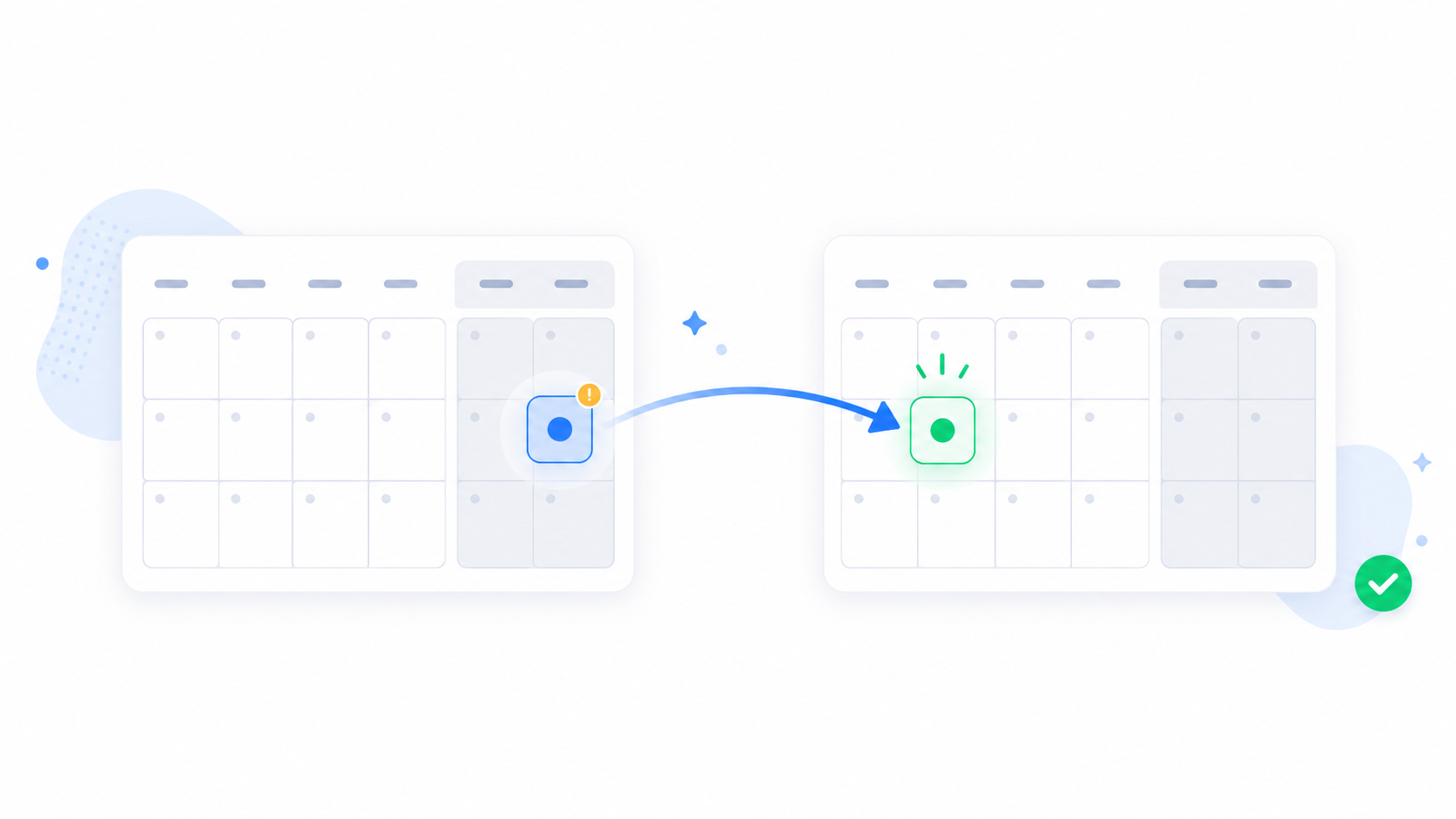
DateSense automatically shifts task due dates off weekends and public holidays to the nearest working day, so deadlines never land on a day nobody works. It supports 150+ countries' holiday calendars and leaves an audit comment on every item it shifts.
It works per board: you choose which date/timeline columns to watch, which country's holidays to respect, and which direction to shift. Nothing changes on boards you have not enabled.
Installation
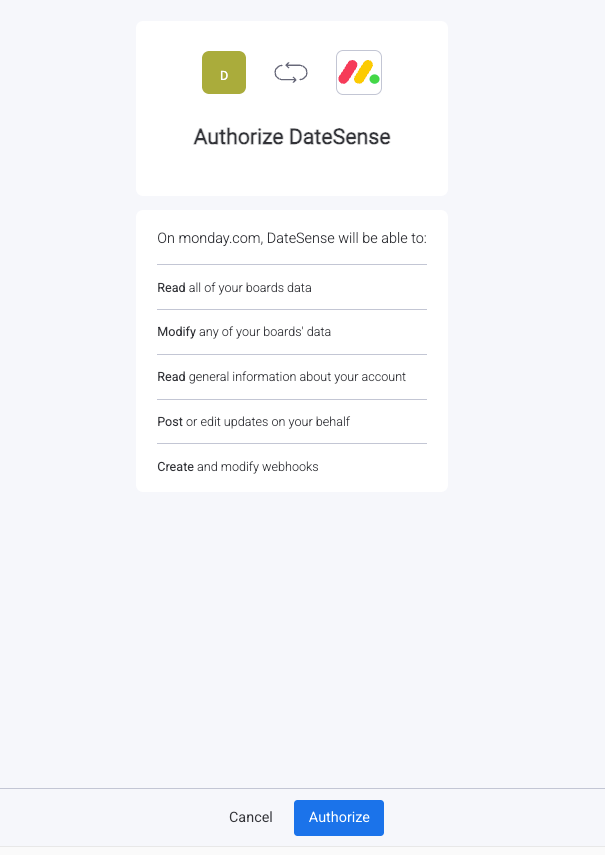
Install DateSense from the monday.com Marketplace, or open the listing and click "Install". monday.com will show you the permissions the app requests and ask you to approve them — this is monday.com's standard consent screen.
After approval you are returned to monday.com. The app is now available to add to any board in your account; installing does not change any board on its own.
First-time use: enable it on a board
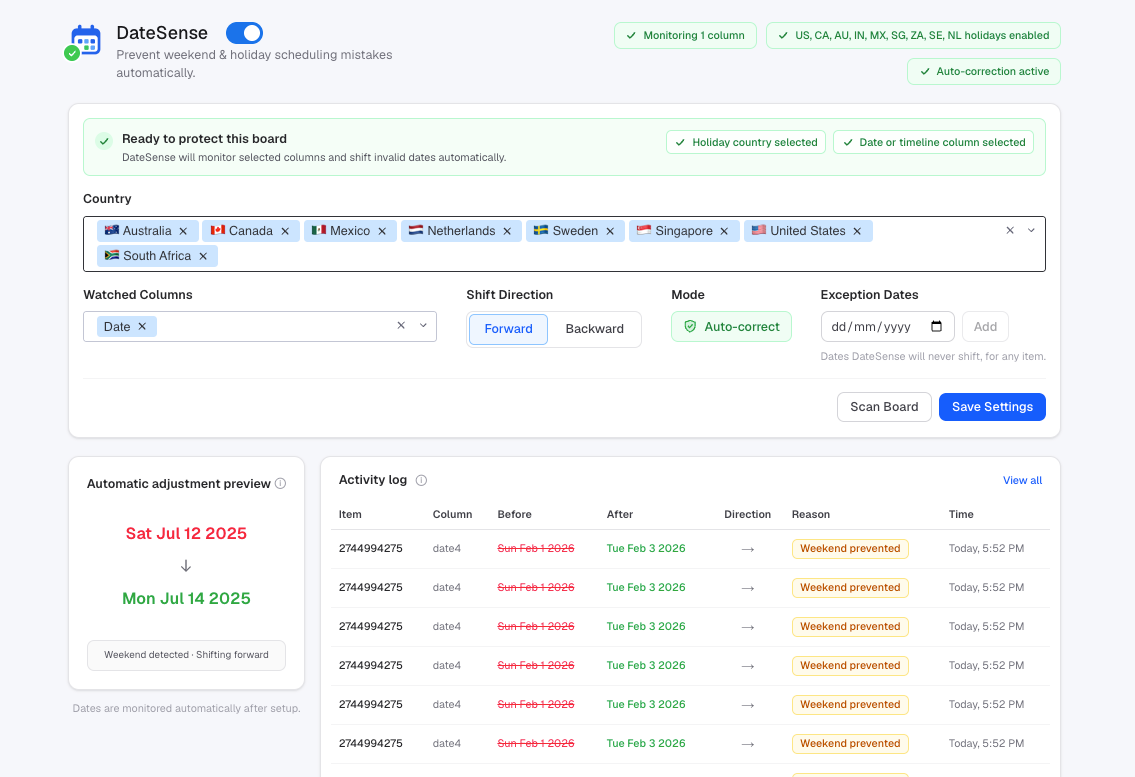
Open the board you want to automate and add the DateSense board view (the + next to your board's view tabs → Apps → DateSense). This opens the board view where you configure the board.
In the board view, pick the Date or Timeline column(s) to watch, choose the country whose public holidays apply, set the shift direction (to the next or previous working day), and enable the board. From then on, any date you set or change on a watched column is automatically corrected if it falls on a weekend or holiday.
Configuration auto-saves. To pause automation, disable the board in the same view; to remove a watched column, deselect it. Every shift the app makes is recorded as a comment on the item so your team can see what changed and why.
Tips and troubleshooting
Timeline columns: only the end date is normalized; the start date is left as you set it. A date already on a working day is never changed.
Holidays come from public national calendars; regional or company-specific days are not included automatically.
Need help? Email support@findosman.com and we respond within 2 business days.